[Main](/) ❯ [Navigation & tracking systems](/navigation_and_tracking_systems_en) ❯ **uNav application: User's manual**
> ℹ This document can be printed directly from your browser.
> For best results:
> - select the range of pages to print, excluding the first and last pages
> - in the advanced settings, disable headers and footers
|  |  |
| :---: | ---: |
| [www.unavlab.com](https://www.unavlab.com/)
[support@unavlab.com](mailto:support@unavlab.com) | **💧 uNav application** - Application for working with the uNav radio dongle
User's manual |
# 💧 uNav application
User's manual
## Contents
- [1. Introduction](#1-introduction)
- [2. Application interface and functions](#2-application-interface-and-functions)
- [2.1. Application settings](#21-application-settings)
- [2.1.1. 🧪 PHYSICS tab](#211--physics-tab)
- [2.1.2. ❗ CONNECTION tab](#212--connection-tab)
- [2.1.3. 🛸 EXTRA tab](#213--extra-tab)
- [2.2. Main application window](#22-main-application-window)
- [2.2.1. Main toolbar](#221-main-toolbar)
- [2.2.2. Map toolbar](#222-map-toolbar)
- [2.2.3. Map panel](#223-map-panel)
- [2.2.4. Additional information panel](#224-additional-information-panel)
- [2.2.5. Log panel](#225-log-panel)
- [2.2.6. Additional panel No. 1](#226-additional-panel-no-1)
- [2.2.7. Additional panel No. 2](#227-additional-panel-no-2)
- [2.2.8. Status line](#228-status-line)
- [2.2.9. Legend field](#229-legend-field)
- [2.2.10. Scale bar](#2210-scale-bar)
## 1. Introduction
The [uNav RF Dongle](/documentation/EN/RWLT/RWLT_RF_Dongle_en.md) navigation solver transmits the calculated position of the pinger, including by emulating the standard (RMC, GGA) sentences of the NMEA0183 protocol used in GNSS receivers. Therefore, after any necessary configuration, the device can be connected to any geographic information system that supports connecting a standard GNSS receiver via a serial port: Google Earth, SAS.Planet, etc.
To configure the device using a [specialized protocol](/documentation/EN/RWLT/uNav_protocol_specification_en.md) or to obtain an extended set of data, which includes, for example, buoy positions, pinger position relative to the reference point, data from the built-in GNSS solver, etc., you can use the [💧 uNav](https://github.com/ucnl/uNav/releases/download/1.0/uNav.zip) application.
The application also allows the data from the solver to be passed through unchanged via a serial connection or via the UDP protocol.
To get started, download the required software. No installation is required - just unpack the contents of the archive to any convenient location.
The application runs on the .NET Framework and is compatible with Windows 10 and later.
## 2. Application interface and functions
### 2.1. Application settings
The application settings editor is available via the **SETTINGS** button in the main application menu. Settings are grouped into tabs:
- **🧪 PHYSICS** - basic settings related to the physical parameters of the environment and algorithm settings in the navigation solver [uNav](/documentation/EN/RWLT/RWLT_RF_Dongle_en.md)
- **❗ CONNECTION** - connection parameter settings
- **🛸 EXTRA** - additional settings related to the display of tracks, map background and specific system parameters
In addition to the tabs, the settings editor has three buttons:
- **SET DEFAULTS** - reset to default settings
- **OK** - Save changes and close the settings editor
- **CANCEL** - Close the settings editor without saving changes
#### 2.1.1. 🧪 PHYSICS tab
The appearance of the tab controls is shown in the figure below:
| |
| :---: |
|  |
| **🧪 PHYSICS** tab of the settings editor |
- **Salinity, PSU** - field for entering the water salinity. The salinity is required for accurate calculation of the speed of sound, as well as for converting the pressure transmitted by the pinger into depth. When the **Auto** checkbox is checked, the application will try to look up the salinity in a database based on the geographic position. It is recommended to use the salinity auto-detection function only for seas, oceans and large bodies of water. Do not use this function when working in small inland bodies of water such as rivers, lakes, ponds, etc. The salinity can also be looked up in the database manually by clicking the corresponding link **🔎**.
- **Water temperature, °C** - field for entering water temperature. This parameter is used only when working with the [WAYU](/documentation/EN/WAYU/WAYU_DataBrief_en.md) system, where the pinger does not have a built-in temperature sensor.
- **Speed of sound, m/s** - if you have a directly measured value of the speed of sound, enter it in this input field. In other cases it is recommended to check the **Auto** checkbox on the right - the speed of sound will be calculated automatically from the salinity, depth and temperature data.
- **Target max speed, m/s** - The maximum possible speed of movement of the positioned object. This parameter affects the operation of the device's internal filter. In most cases it is recommended to leave the default value: 1 m/s
- **S-filter range threshold, m** - The distance between adjacent measurements of the location of the positioned object, at which the smoothing filter will be reset.
- **S-filter FIFO size** - size of the smoothing filter queue. It is not recommended to change this value.
- **DH-filter range threshold, m** - threshold of the classifier filter. It is not recommended to change this value.
- **DH-filter FIFO size** - queue size of the classifier filter. It is not recommended to change this value.
- **Course estimation by, points** - The number of consecutive positions of the positioned object from which the course of its movement will be determined.
#### 2.1.2. ❗ CONNECTION tab
The figure below shows the tab view:
| |
| :---: |
|  |
| **❗ CONNECTION** tab of the settings editor |
- **Input port baudrate** - connection speed to the device [uNav](/documentation/EN/RWLT/RWLT_RF_Dongle_en.md).
- **Serial bypass port baudrate** - speed of the output port through which the application can transmit data received from the device.
#### 2.1.3. 🛸 EXTRA tab
The appearance of the tab controls is shown in the figure below:
| |
| :---: |
|  |
| **🛸 EXTRA** tab of the settings editor |
- **Number of track points to show** - This input field specifies the maximum number of track points to display.
- **Tile size, px** - sets the size of map tiles in pixels. This parameter depends on the tile server.
- **Tile servers** - list of tile server addresses for downloading map tiles.
- **Enable tile download** - when checked, the application will try to download the necessary tiles from the specified servers.
### 2.2. Main application window
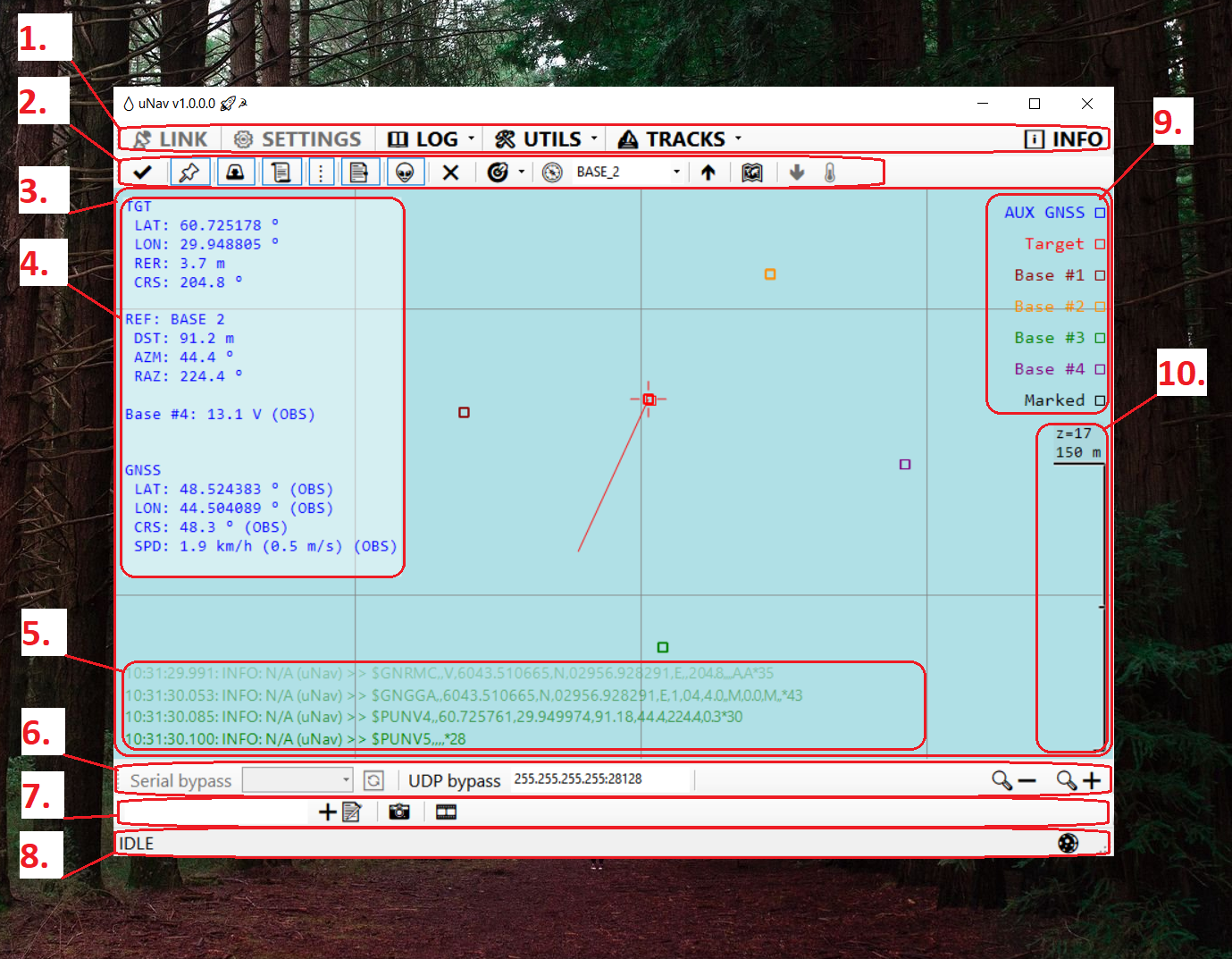
The general view of the main application window is shown in the figure below:
| |
| :---: |
|  |
| Main application window |
| _1 - Main toolbar, 2 - Map toolbar, 3 - Map panel, 4 - Additional information panel, 5 - Log panel, 6 - Additional panel No. 1, 7 - Additional panel No. 2, 8 - Status line, 9 - Legend field, 10 - Scale bar_ |
#### 2.2.1. Main toolbar
This part contains basic controls for the application's state, as well as commands for managing settings, log files, tracks, and device information.
##### **📡 LINK** (Ctrl + L)
Button for opening/closing the connection with the device. If the connection is active, i.e. the button is pressed, the application will try to establish a connection with the **uNav** device via a serial port, trying all the serial ports in the system. The connection state is displayed in the status line.
##### **⚙ SETTINGS** (Ctrl + O)
Button for opening the settings editor. Inactive when the connection is established or while a log file is being played back.
##### **📖 LOG**
Contains a set of functions for working with log files.
###### **👀 Open current...** (Ctrl + H)
Opens the current log in the application assigned to files with the log extension (usually Notepad)
###### **▶ Playback...**
This function is intended for playing back a log file. During playback, the application reproduces everything that was recorded in the log file, preserving the original time intervals. While a log file is being played back, this item reads: **⏹ Stop playback**
###### **🧹 Clear empty entries**
Deletes all log files smaller than 2 KB, as well as empty folders.
###### **🗜 Archive all entries...**
Places all log files into an archive. After the archive is created, a link to it will appear in the [status line (8)](#228-status-line).
###### **🗑 Delete all entries**
Deletes all contents of the LOG folder.
###### **🧹+🗜+🗑 Do them all**
Sequentially performs the previous three items: deletes the log files smaller than 2 KB, places the remainder into an archive, deletes all contents of the LOG folder.
##### **🛠 UTILS**
Contains additional functions.
###### **🛈 View device info**
View information about the device: name, firmware version, serial number.
##### **ℹ INFO**
Button for opening a window with information about the application.
#### 2.2.2. Map toolbar
##### ✔ (Ctrl + M) - Mark current location
Saves the last calculated position of an object into a separate track (Marked). This function allows you to mark the current point on the motion track.
##### 📌 - Show/Hide marked points
Enables/disables the display of marked points on the map.
##### 🚨 - Show/Hide base points
Enables/disables display of buoy tracks.
##### 📜 - Show/Hide log
Enables/disables display of the log panel (5)
##### ⁞ - Show/Hide legend
Enables/disables display of the legend field (9)
##### 📑 - Show/Hide notes
Enables/disables display of comments
##### 👽 - Show/Hide extra info
Enables/disables display of additional information field (4)
##### ❌ - Reset view
Clears the displayed tracks. This action does not affect the tracks being recorded or the log file.
##### 🎯 - Accuracy measurement utils
Contains functions for the statistical estimation of the system accuracy. These functions can be used only when the positioned object is stationary in the water column (for example, resting on the bottom). Otherwise, the calculation will be incorrect.
The calculated statistical parameters are CEP (Circular Error Probable) - the radius of the circle within which the next measurement of the object's location is to be expected with **50%** probability, and DRMS (Distance Root Mean Square), 2DRMS, 3DRMS, which correspond to the radii of the circle within which the next measurement of the location is to be expected with 65%, 95% and 98% probability, respectively.
The calculation proceeds as follows. After the function is activated, each newly calculated location of the positioned object is placed into a buffer, for which the standard deviations 𝜎x and 𝜎y along the X (longitude) and Y (latitude) axes, respectively, are calculated.
CEP = 0.62 · 𝜎y + 0.56 · 𝜎x
DRMS = √(𝜎x2 + 𝜎y2)
###### ⏺ Start/⏹ Stop - Start/Stop accuracy estimation
Start or stop the accumulation of statistical data (CEP, DRMS).
###### ⏪ Reset - Reset accuracy test
Clears the set of measurements for which CEP and DRMS are calculated.
##### 🧭 - Reference point
Drop-down list allowing you to select a reference point. The course to this point from the positioned object, the course from this point to the positioned object and the distance between them will be calculated. The GNSS built into the uNav solver, one of four buoys, or a user-defined point can be selected as a reference point.
##### 🡹 (Ctrl + F) - Enable/Disable following target
Enables/disables centering the map relative to the current position of the positioned object.
##### 🗺 - Enable/Disable tiles
Enables/disables the display of map tiles. Tiles will only be displayed when available.
##### 🡻 (Ctrl + D) - Set target depth
Allows you to directly specify the depth of the positioned object, if it is known. The function is used for the WAYU system, where the pinger does not have a built-in depth sensor.
##### 🌡 (Ctrl + T) - Set water temperature
Allows you to set the water temperature without going to settings (and without restarting the application). This function is used for the [WAYU](/documentation/EN/WAYU/WAYU_DataBrief_en.md) system, where the pinger does not have a built-in temperature sensor.
#### 2.2.3. Map panel
The map panel is used to display tracks of movement of objects:
- calculated position of the positioned object
- buoy positions
- GNSS receiver built into uNav
- saved (marked) positions
The length of the track of the positioned object, i.e. the maximum number of points that make up the track, is set in the application settings, on the **🛸 EXTRA** tab in the **Number of track points to show** field.
The map panel also contains:
- additional information panel (4)
- log panel (5)
- legend field (9)
- scale bar (10)
#### 2.2.4. Additional information panel
The display of this element is toggled by the **👽** button on the [map toolbar (2)](#222-map-toolbar). This panel displays various system parameters in text form. To the right of each value, the time elapsed since this value was last updated may be displayed.
For clarity, all possible parameters are summarized in the tables below.
Heading **TGT - TarGeT**
| ID | Description |
| :--- | :--- |
| LAT | Geographic latitude of the object in °, negative values for the southern hemisphere |
| LON | Geographic longitude of the object in °, negative values for the western hemisphere |
| RER | Radial error in m |
| CRS | Course in °, in the range from 0 to 360, clockwise from north |
| DPT | Depth of the positioned object in m. |
| LEC | Last error code received from the positioned object |
| RTM | Temperature in °C, according to the pinger data (RWLT pinger only) |
| RPR | Pressure in mbar, according to the pinger data (RWLT pinger only) |
| RBT | Pinger supply voltage in V, according to the pinger data (RWLT pinger only) |
Heading **REF - REFerence point**
| ID | Description |
| :--- | :--- |
| REF | Reference point type |
| DST | Distance between the positioned object and the reference point in m |
| AZM | Azimuth - direction from the positioned object to the reference point in °, in the range from 0 to 360, clockwise from north |
| RAZ | Back azimuth - direction from the reference point to the positioned object in °, in the range from 0 to 360, clockwise from north |
Heading **GNSS - data from built-in GNSS receiver**
| ID | Description |
| :--- | :--- |
| LAT | Geographic latitude of the object in °, negative values for the southern hemisphere |
| LON | Geographic longitude of the object in °, negative values for the western hemisphere |
| CRS | Course in °, in the range from 0 to 360, clockwise from north |
| SPD | Travel speed, m/s and km/h |
#### 2.2.5. Log panel
The display of this element is toggled by the **📜** button on the [map toolbar (2)](#222-map-toolbar). This element displays the last few lines of the application log: data exchange with the device, errors that occur, etc.
#### 2.2.6. Additional panel No. 1
The panel contains controls for output ports and buttons for zooming in and out of the map display.
The **Serial bypass** button enables or disables the connection via the serial port, selected from the drop-down list to the right of the button. All data received by the application from the device is transmitted to this port. The **🔄** button to the right of the drop-down list with port names is used to update the list of ports.
The **UDP bypass** button is used to enable or disable transmission via the UDP protocol to the address indicated to the right of the button.
In both cases, the entire data stream received by the application from the device is transmitted to the output ports.
The **🔍➖** (Ctrl -) and **🔍➕** (Ctrl +) buttons are used to zoom the map out (increase the scale) and zoom in (decrease the scale), respectively.
#### 2.2.7. Additional panel No. 2
The input field on the left side of the panel is intended for creating entries during operation: the user can quickly type explanatory text and press **Enter**, after which the comment will appear at the top of the map field and will be saved to the current log file. When playing the log, this comment will also be displayed at the appropriate time.
The **📸** button (Ctrl + P) allows you to take a snapshot of the application window and save it in the SNAPSHOTS subfolder in the application root folder. After saving the snapshot, a link to it will appear in the [status line (8)](#228-status-line).
The **🎞** button is designed to start and stop automatic saving of snapshots of the main application window with a period of 1 second. The snapshots will be saved to the AUTOSNAPSHOTS subfolder in the application root folder.
#### 2.2.8. Status line
The left part of the status line displays the connection state. The middle part displays the links to the last saved screenshot or to the created log archive.
#### 2.2.9. Legend field
A list of tracks with sample markers that correspond to them is displayed here. You can turn on or off the display of the legend field using the **⁞** button on the [map toolbar (2)](#222-map-toolbar).
#### 2.2.10. Scale bar
The vertical ruler is used to display the map scale. In its upper part it shows the scale level (Z) and the size of the ruler on the map in meters.
If necessary, the user can take measurements between arbitrary points on the map using the right mouse button: to mark the starting point, press and release the right mouse button. After this, the tape measure will be displayed with the specified starting point. Clicking the right mouse button again will set the end point of the measurement. A subsequent right-click will reset the measurement.
The measurement is also reset when the map center is moved, so before taking a measurement, you must disable automatic centering of the map relative to the current position of the positioned object, if it is enabled.
The **🡹** (Ctrl + F) button on the [map toolbar (2)](#222-map-toolbar) is used to turn on/off automatic map centering.
[Back to contents](#contents)